What Is Hermes Agent? Complete Local Desktop Deployment & Usage Guide
This Hermes Agent local deployment guide walks you through installing and configuring an open-source AI agent directly on your desktop — a world away from cloud-based chatbots like ChatGPT that forget everything once the session ends.
Hermes Agent is an AI assistant that gets better over time: it remembers your preferences, learns new skills on its own, operates software and files on your machine, and can even run tasks autonomously while you sleep.
Starting from the very basics, this guide covers step-by-step installation, core configuration, and the most common pitfalls beginners run into. By the end, even complete beginners will have a fully functional AI agent running on their PC.
Table of contents
1. What Is Hermes Agent? A Beginner’s Introduction to Local AI Agents
1.1 Overview
Hermes Agent is an open-source AI agent framework developed by Nous Research, released under the MIT license. At its core, it is a deployable AI agent application layer — simply put, it is an AI program you install on your own computer or server, rather than a chat feature buried inside a website or app.
What sets Hermes Agent apart from other AI tools is that it learns, remembers, and evolves. Ordinary AI chatbots start fresh with each session — you have to explain everything from scratch. Hermes Agent, by contrast, automatically distills experience from the tasks it performs and stores it as reusable skills. The more you use it, the smarter it gets.
This mechanism is called the “Learning Loop.” After completing a complex task, Hermes automatically decides whether the execution is worth recording. If it involved more than 5 tool calls, self-corrected an error mid-task, received user feedback, or found an unusual but effective approach, it generates a skill file in the ~/.hermes/skills directory that can be reused next time.
Who is it for?
- Content creators and writers who don’t want sensitive work sent to cloud AI services
- Office users who need to automate file organization, research, and report generation
- Everyday users curious about AI agents but not comfortable writing code
- Power users who want an AI that adapts to their personal preferences and workflow
1.2 Regular Chat AI vs. Hermes Agent: Key Differences
The unique value of Hermes Agent is that it is not a disposable tool — it is a long-term, continuously evolving work companion.
1.3 What Is an AI Agent, Exactly?
Here is a simple analogy to understand the difference between an AI agent and a regular AI chatbot:
A regular AI chatbot is like a knowledgeable librarian. You ask a question, and they give you an answer. Ask “How do I install Python?” and they give you steps. Ask “Can you organize my desktop files?” and they can only tell you how — they won’t actually do it for you.
An AI agent is more like a capable personal assistant. Tell it “Move all PDF files on my desktop into a folder sorted by date,” and it will understand the goal, break it into steps (locate files → create folder → move files → sort → report back), invoke the right tools to execute, and then tell you when it’s done.
Hermes Agent falls squarely in the second category — it understands what you want to achieve, decides which tools and workflows to use, and delivers the result.
1.4 Core Capabilities at a Glance
- Terminal UI (TUI): Hermes Agent ships with a full terminal interface featuring multi-line editing, slash command autocomplete, and conversation history — no coding required.
- Multi-model switching: Switch between model providers with a single command. Compatible with Nous Portal (official recommendation), OpenRouter (200+ models), OpenAI, Anthropic Claude, Google Gemini, and local Ollama offline models.
- Local tool execution: Hermes can directly manipulate files on your computer, run terminal commands, control the browser, and make network requests — truly bringing AI out of the chat box and into your workflow.
- Custom agent personas (Profiles): Through a SOUL.md configuration file, you define Hermes’s response style, behavioral preferences, and role. Switch between personas for writing, office work, or coding.
- Remote messaging gateway: Connect Telegram, Discord, Slack, and more. Send commands to your desktop Hermes from your phone and get results remotely.
- Local privacy by default: All data processing happens locally by default — nothing is uploaded externally. Pair it with Ollama for a fully offline local model and your data never leaves your machine.
2. Key Benefits of Hermes Agent: Why Choose a Local Open-Source AI Agent
2.1 For SEO & Content Creators
- No content leaks: All drafting, outlining, and keyword research happens locally, so you never have to worry about unpublished ideas being used for AI training.
- No usage caps: No API call limits or token quotas from a cloud service — you only pay for the model API credits you actually use.
- Batch content polishing: Set a persona and let Hermes polish multiple articles at once, no more copy-pasting one by one.
- SEO outline generation: Use the
/planslash command and Hermes automatically breaks a topic into a structured writing outline with timelines and milestones. - Research aggregation & keyword organization: Point Hermes at a local folder of source materials and it extracts key insights and builds keyword tables automatically, saving hours of manual work.
2.2 For Office & Personal Users
- Automated file organization: Say “Move files older than 30 days from my Downloads folder into an archive directory” and Hermes does it for you.
- Meeting minutes generation: Drop a transcribed meeting recording into Hermes, and it outputs formatted minutes with action items.
- Complex tasks without code: Describe what you need in plain English, and Hermes writes and runs the scripts for you — no programming skills required.
- Freedom to switch models: Use one model for writing, another for coding, and a local offline model for casual chat — all in the same interface, switch anytime.
- Local privacy & security: Sensitive work files, client data, and personal documents stay on your machine — no third-party servers involved.
- 24/7 unattended operation: Set up scheduled tasks (Cron) for daily reports, backups, and monitoring. Hermes runs automatically at the time you set and pushes results to you.
3. Hermes Agent FAQ: Hardware, Models, Privacy & Common Questions
3.1 What Are the Hardware Requirements?
- Minimum: 256MB RAM, 100MB storage, standard CPU (x86_64 or ARM64). If you only run the Hermes framework and call cloud model APIs, any regular home computer is more than enough.
- Recommended: 4-core CPU + 8GB RAM for smooth concurrent tool calls and complex multi-step workflows.
- For running local models (e.g., via Ollama): 16GB+ RAM and an NVIDIA RTX-class GPU are recommended. The good news: most beginners only need cloud APIs (OpenAI, Anthropic, etc.) and don’t run models locally, so a standard laptop works perfectly fine.
3.2 Which Model Providers Are Supported?
Recommended providers:
- Nous Portal — official native integration; Hermes-series models are specifically optimized for function calling
- OpenRouter — access to 200+ models including Claude, GPT, and Gemini
- OpenAI — GPT-4o, GPT-4o-mini, and more
- Anthropic Claude — Claude 3.5 Sonnet and others
- Google Gemini — Gemini 1.5 Pro / Flash and more
- Ollama — fully local offline deployment, supports Llama 3, Mistral, and other open-source models
3.3 Does Local Deployment Send Data to the Internet?
Hermes Agent uses a layered data processing model:
- Fully local data: File operations, terminal commands, browser control, conversation history search, and skill file storage — none of this leaves your computer by default.
- Data that requires internet: When calling a cloud model API (OpenAI, Anthropic, etc.), your prompts and system instructions are sent to the provider for processing. This is governed by that provider’s privacy policy.
- Gateway communication data: If you configure Telegram, Discord, or Slack messaging gateways, messages pass through those platforms’ servers.
3.4 CLI vs. TUI: Which Should Beginners Choose?
Beginners should start with the desktop TUI (visual interface). Everything is done through clicks and natural language — no need to memorize command-line parameters. Once you’re comfortable, you can explore advanced CLI features as needed.
4. Hermes Agent Installation & Configuration: Step-by-Step Desktop Setup
4.1 Installation & Startup
Download the Windows desktop app from the official Hermes Agent website: https://hermes-agent.nousresearch.com/
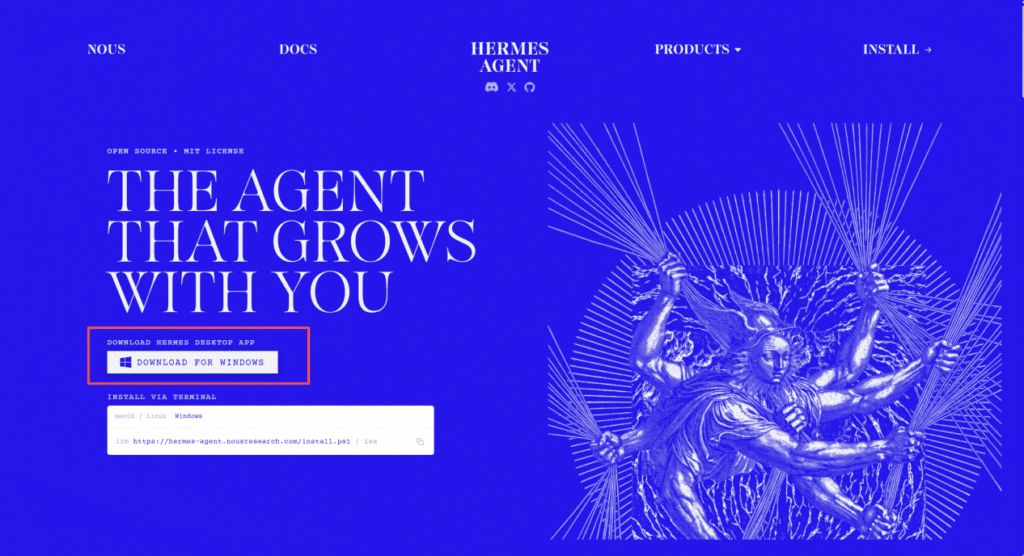
Figure 1: Hermes Agent official website download page
After downloading, add the environment variable in PowerShell and run the Hermes installer.
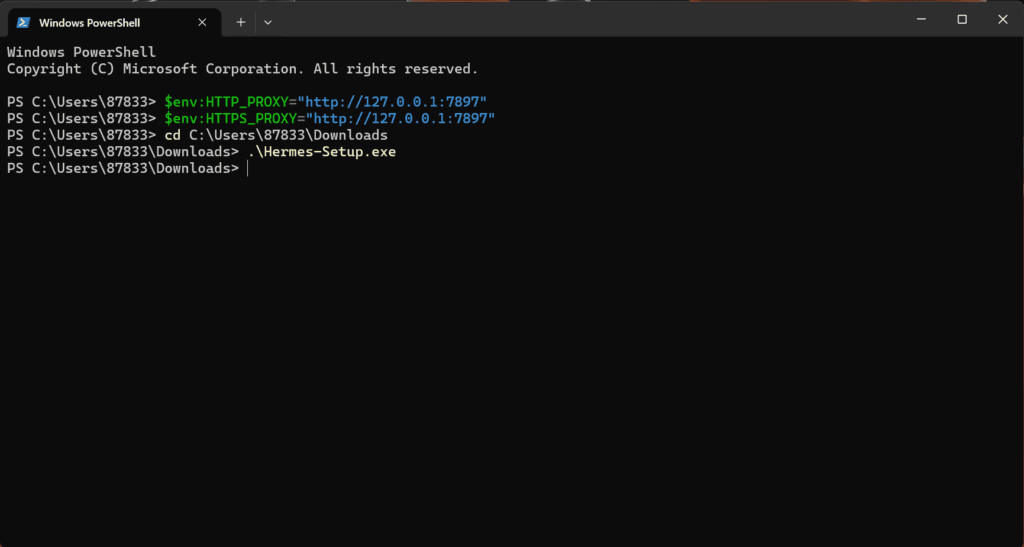
Figure 2: Running the installer and configuring environment variables in PowerShell
Once the installer launches, click Install.
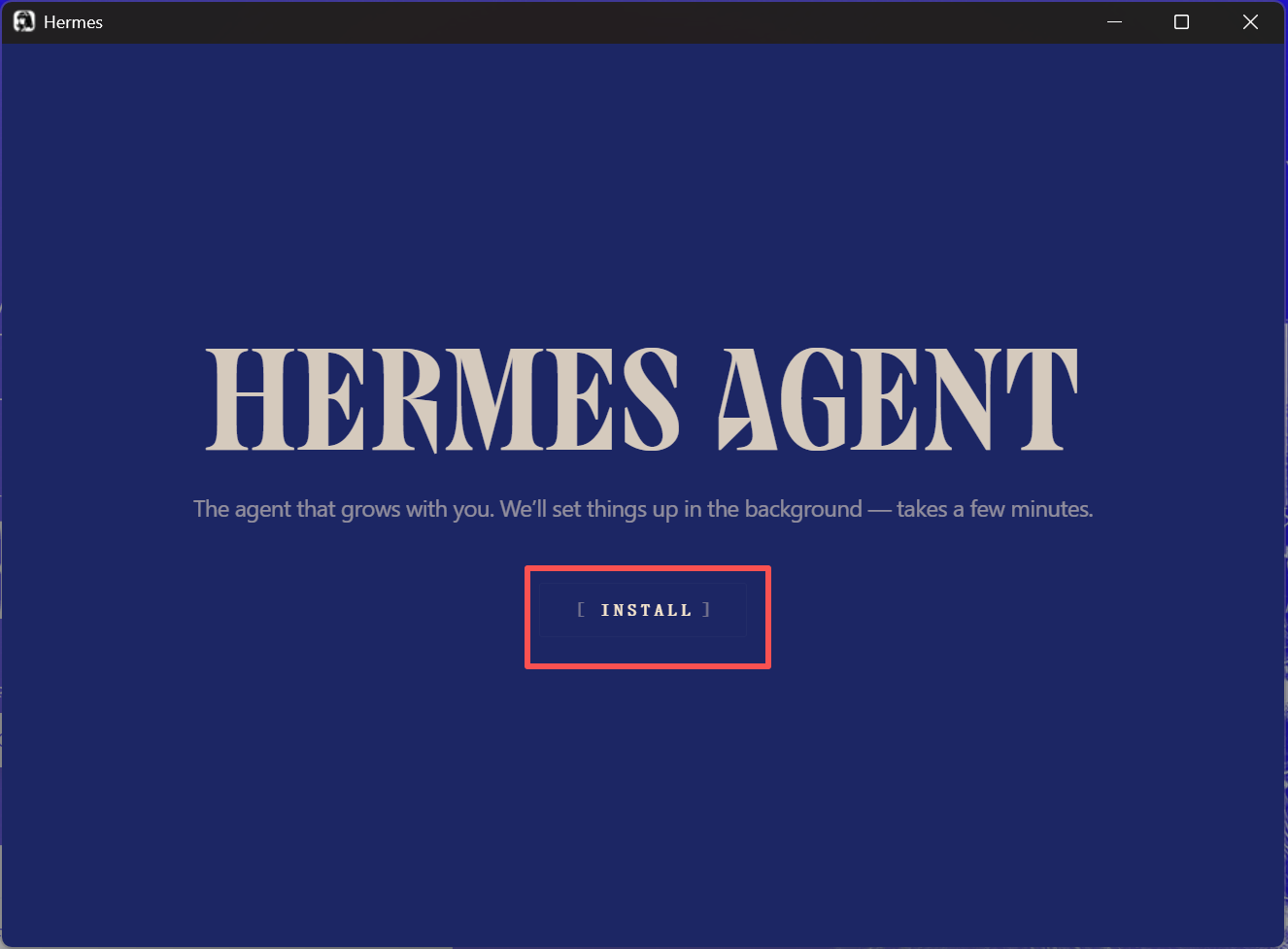
Figure 3: Installer startup screen — click Install
Wait for the installation to complete.
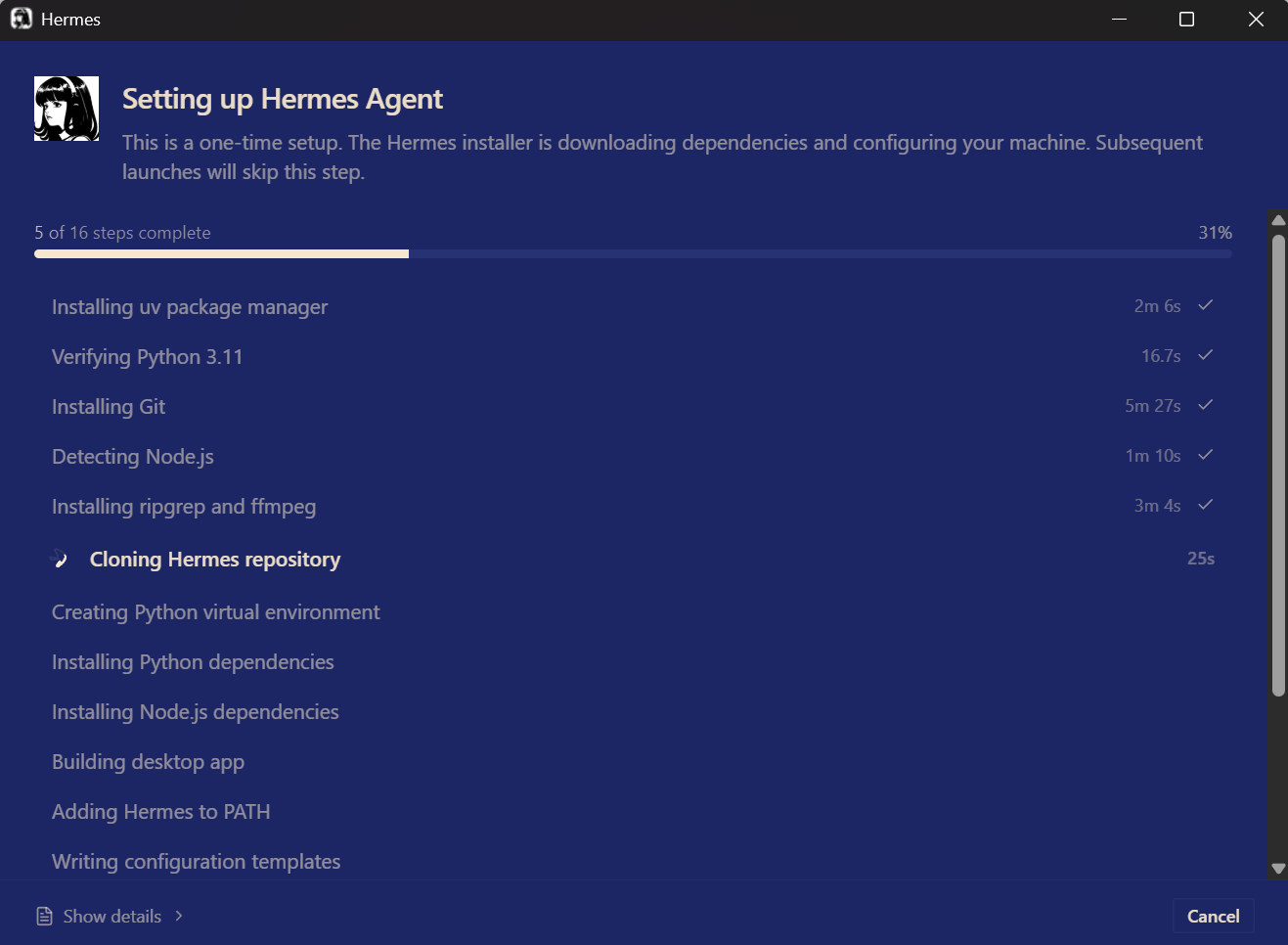
Figure 4: Installation in progress
When installation finishes, click Launch.
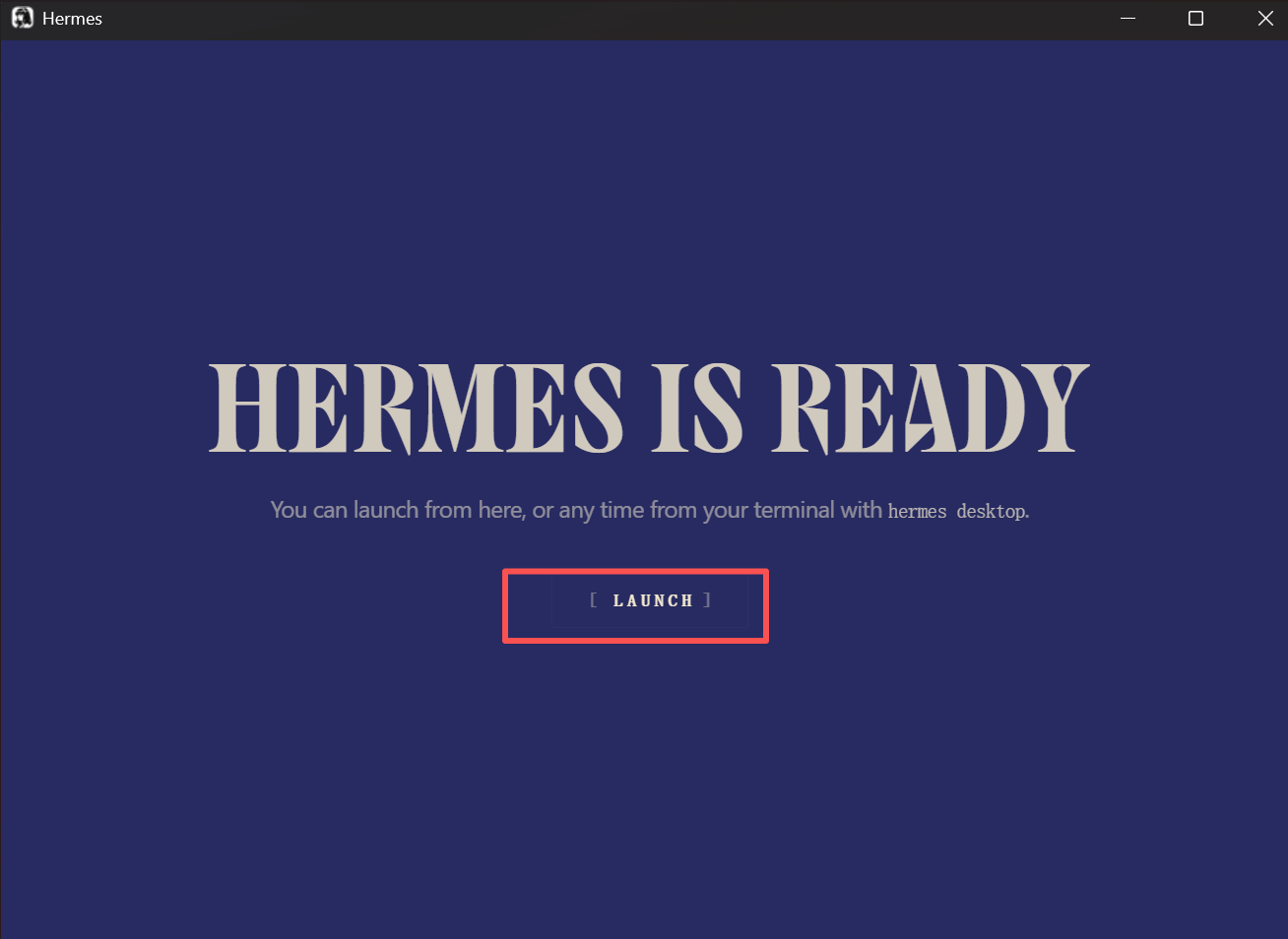
Figure 5: Installation complete — click Launch to start
Startup successful.
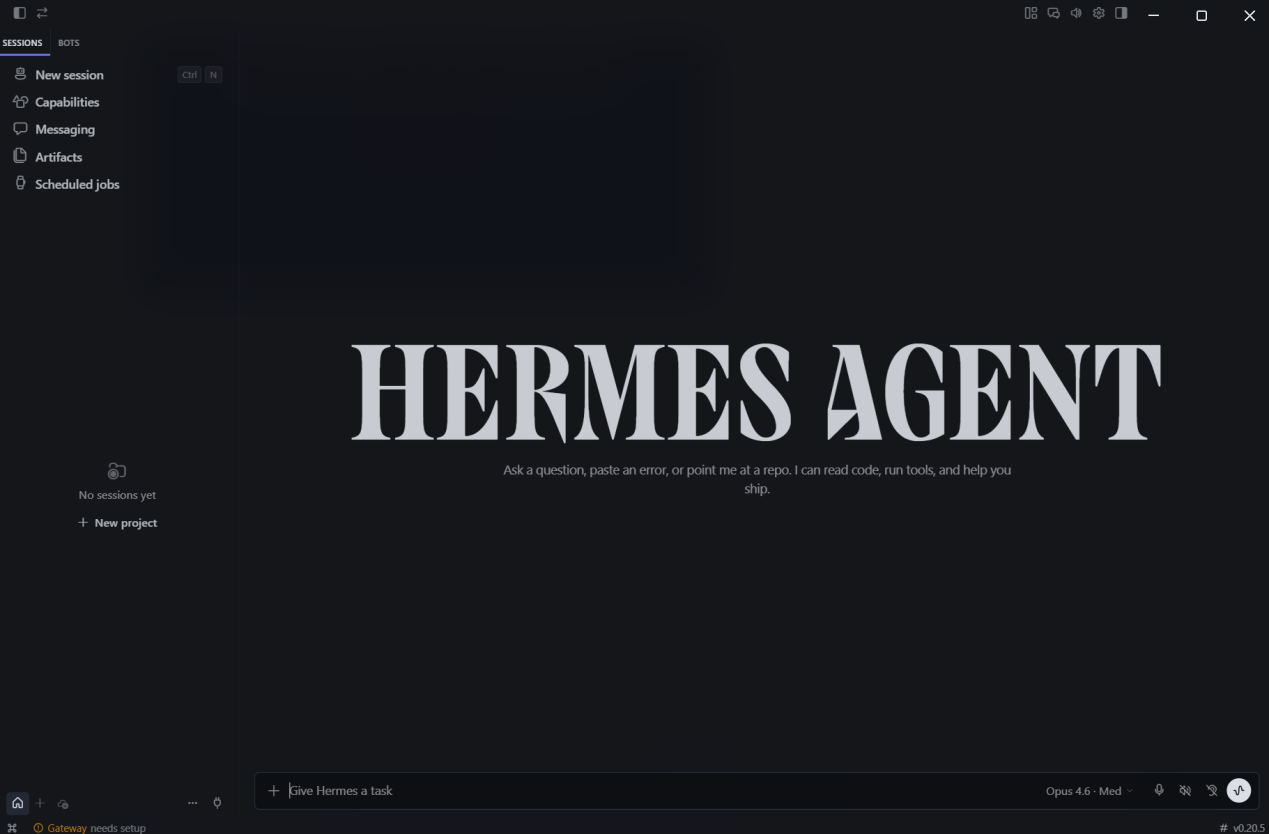
Figure 6: Hermes Agent main interface after successful startup
4.2 Main Interface: Five Core Features
The left sidebar of the Hermes Agent desktop app has two tabs: SESSIONS and BOTS.
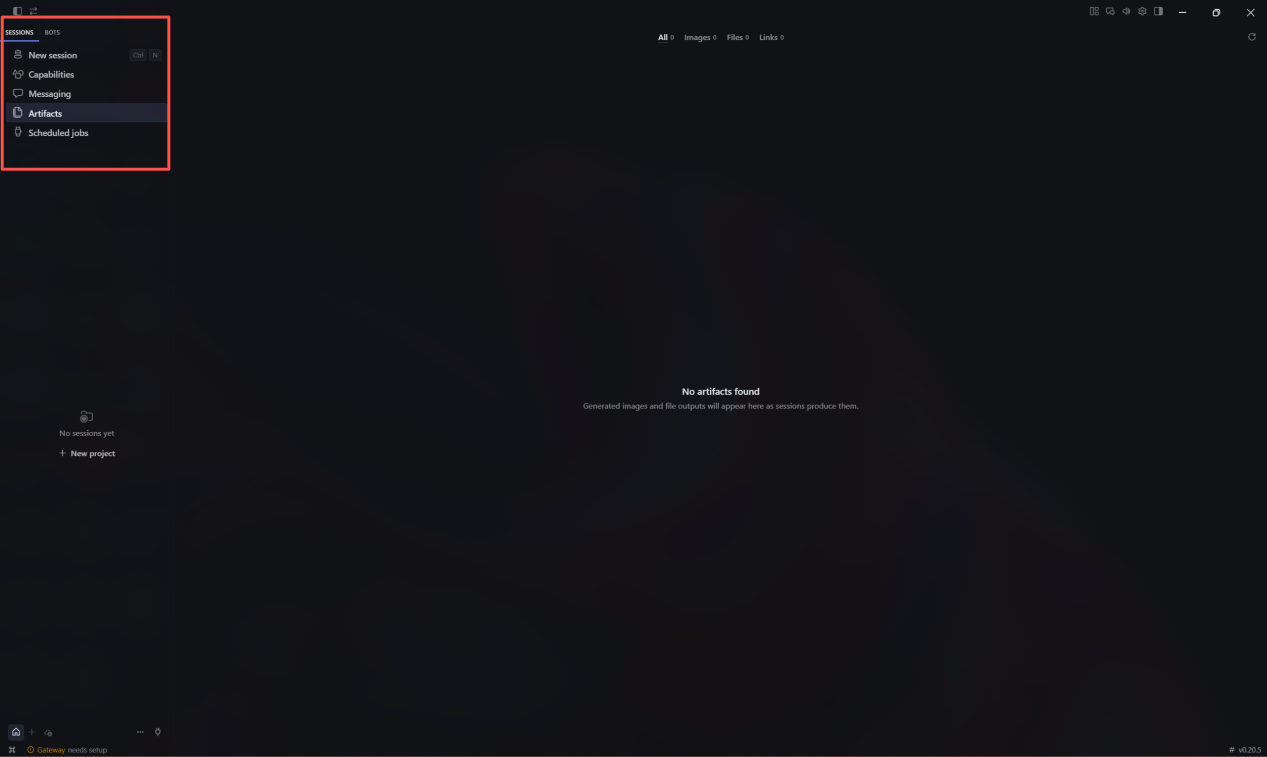
Figure 7: Left sidebar — SESSIONS and BOTS tabs
Under the SESSIONS tab, there are five main options: New session, Capabilities, Messaging, Artifacts, and Scheduled. Everything is configured through a visual panel — no complex commands needed.
New Session
This is the main conversation interface where you interact with the agent. Each session is fully isolated — context, memory, and tool call history are kept separate.
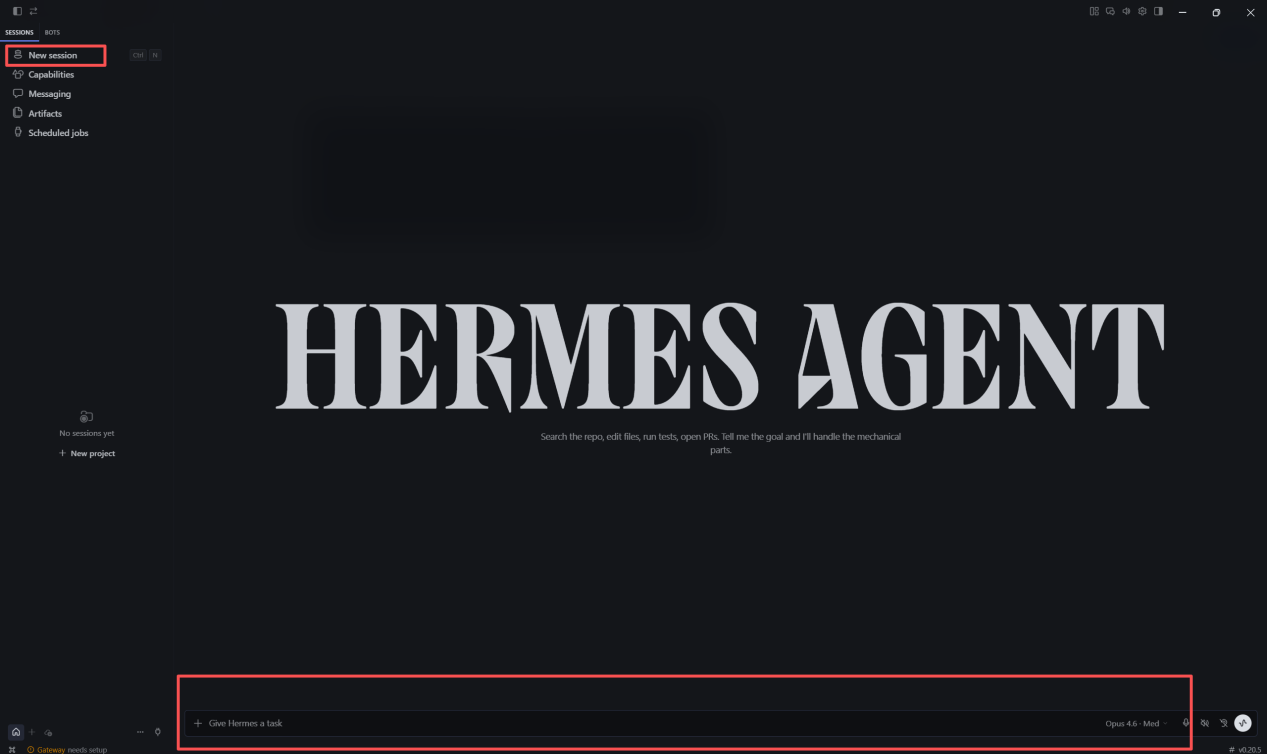
Figure 8: New Session conversation interface
Create separate sessions for different tasks — document processing, data analysis, scripting — to prevent context from bleeding between projects. From here you can ask questions, view full conversation history, watch the agent’s tool-calling process in real time, switch models, and check token usage.
Beginner tip: If the agent starts giving weird or inconsistent answers, start a new session to reset the context — it’s the fastest fix.
Capabilities
This is the core module for automation, combining Skills (custom workflows) and Tools (system-level permissions).
Custom Skills: Pre-built workflow templates created by the community or users themselves. Enable, disable, or import third-party skills to handle complex multi-step tasks.
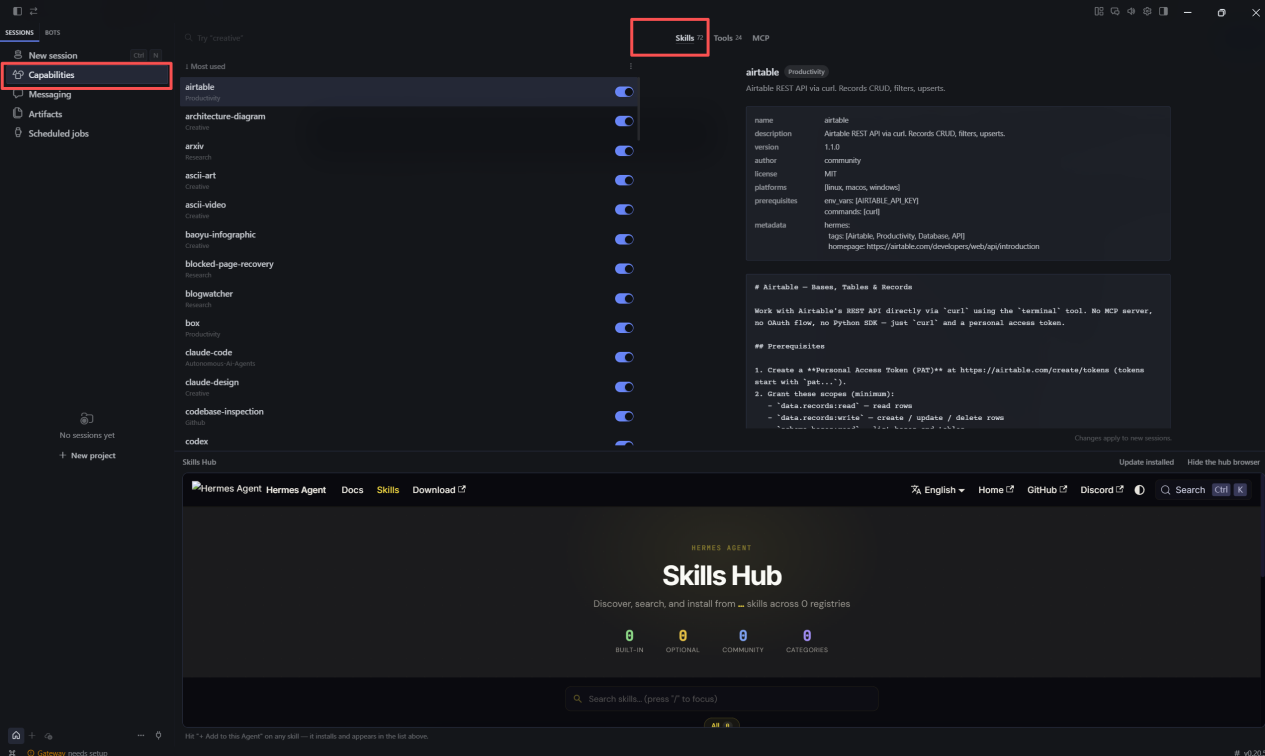
Figure 9: Skills list in the Capabilities panel
System Tools (Toolsets): Control which local permissions the agent can access — file reading, terminal execution, browser access, network requests, and more.
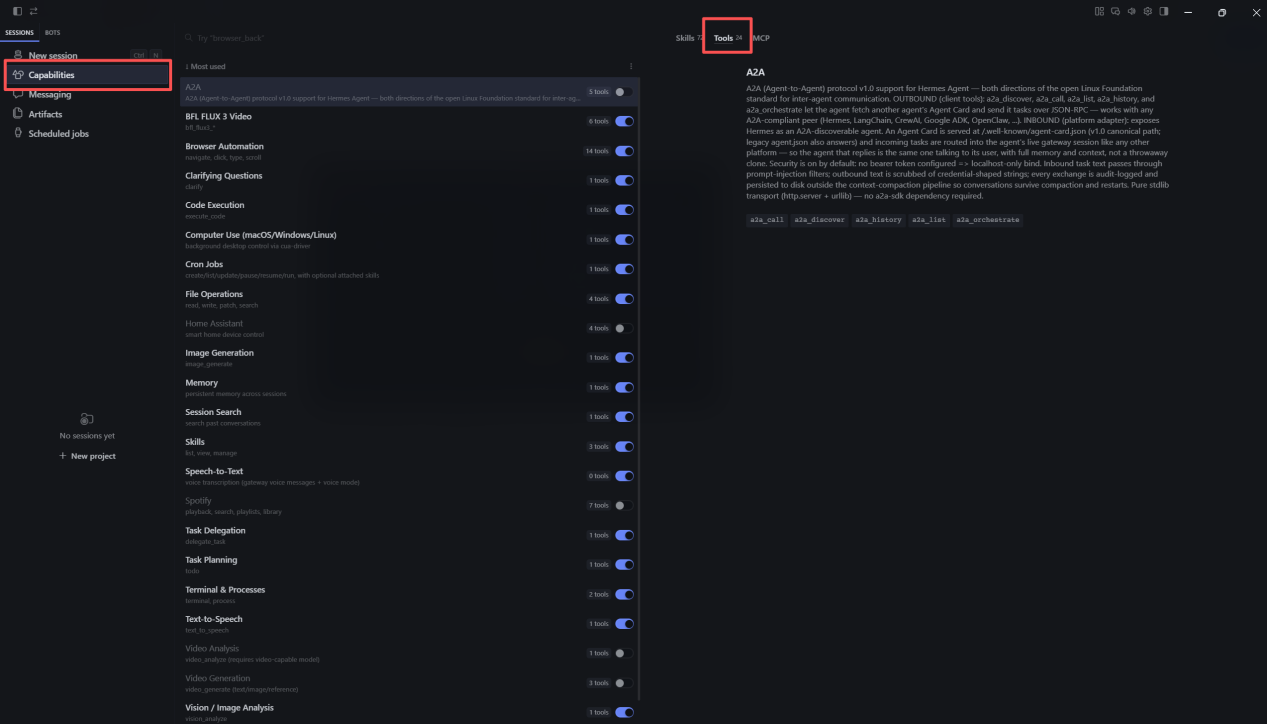
Figure 10: Tools system permission configuration panel
Beginner tip: Don’t turn on all permissions at once. Enable only what you need, and be especially cautious with terminal execution and file modification permissions.
Messaging
The messaging gateway configuration page lets you connect third-party platforms like Telegram and Discord to remotely control your local Hermes instance.
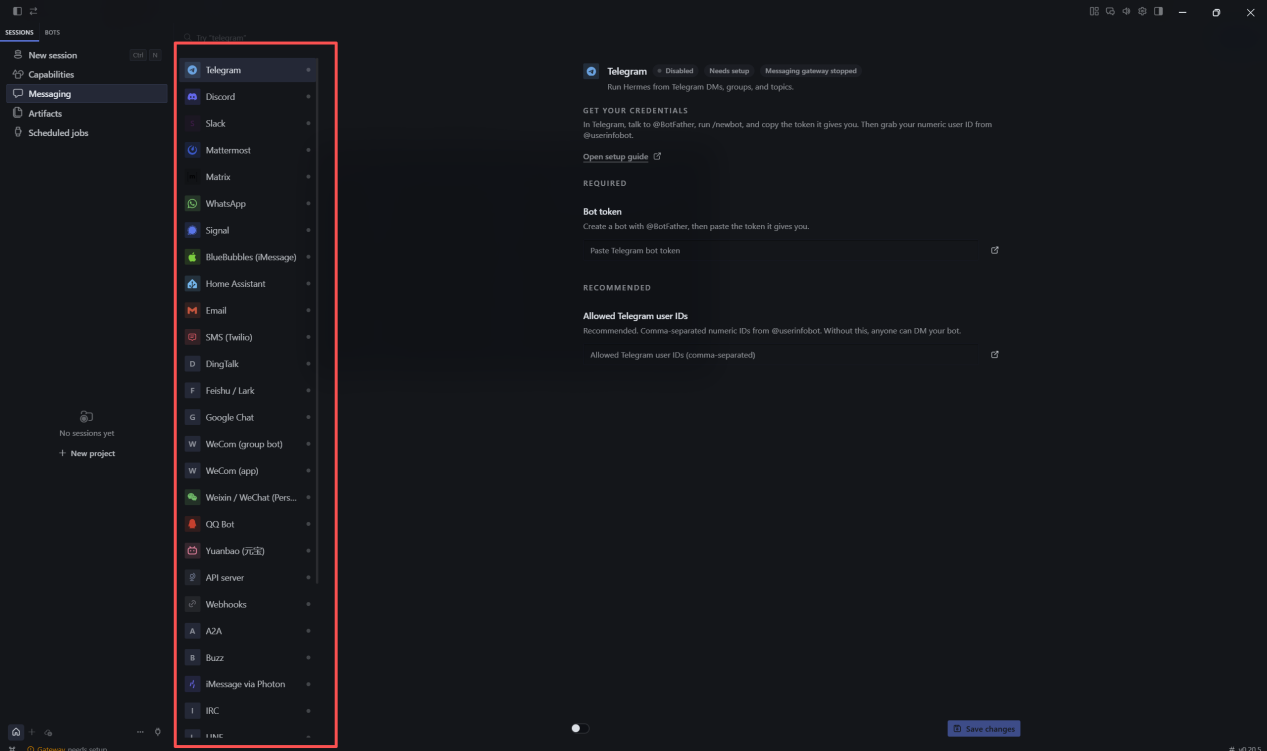
Figure 11: Messaging gateway configuration page
Once configured, you can send tasks to your desktop agent from a messaging app on your phone and receive results remotely.
Beginner tip: Always configure a user whitelist when using the gateway — this prevents unauthorized access to your local agent.
Artifacts
All scripts, documents, scraped web pages, exported files, and reports generated by the agent are automatically saved here.
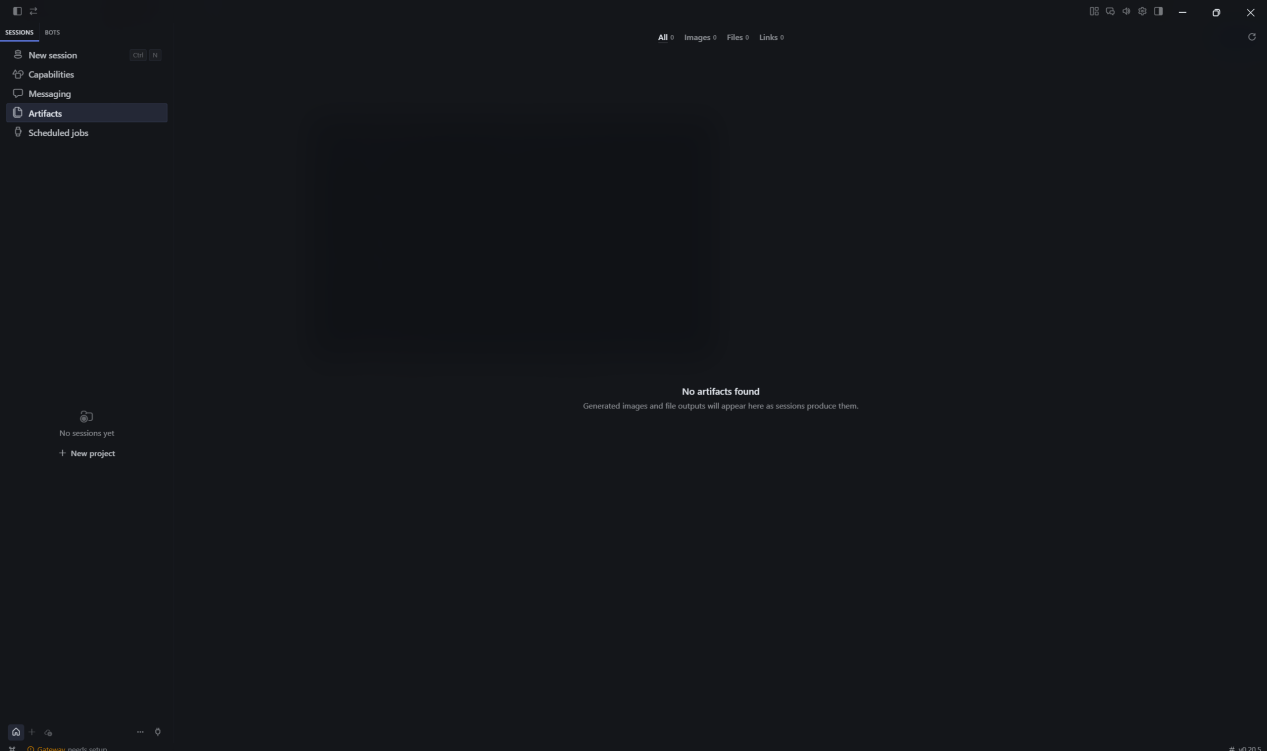
Figure 12: Artifacts output archive page
Many outputs don’t stay in the chat window permanently — they’re archived here. When a conversation gets long, you can search, preview, and export files directly from Artifacts.
Beginner tip: After generating files or scripts, always check Artifacts to confirm the output.
Scheduled Jobs
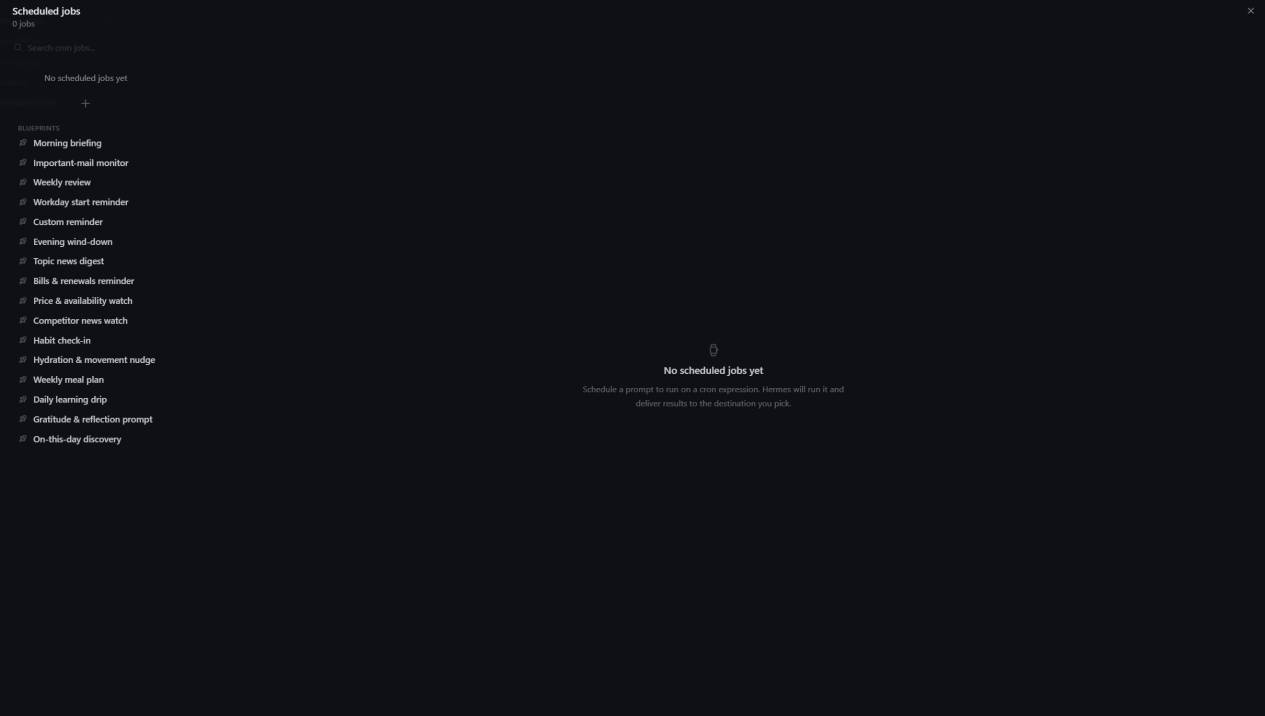
Figure 13: Scheduled jobs configuration page
A newer feature that lets you set up one-time or recurring tasks — scheduled script execution, web scraping, report generation, and more. Set the schedule and task instructions, and Hermes runs it in the background automatically.
Beginner tip: Scheduled jobs require your computer to stay on and Hermes to remain running. If your computer goes to sleep, the task will be interrupted.
4.3 Capabilities (Skills & Tools): Detailed Configuration
Note: The menu is called “Capabilities” in the new interface and “Skills & Tools” in older versions. Both refer to the same section.
Skills and Tools are two completely separate systems, and most beginners mix them up. In short: Skills are packaged business workflows; Tools are OS-level permission switches. Skills can only actually execute if the corresponding Tools are enabled.
Skills
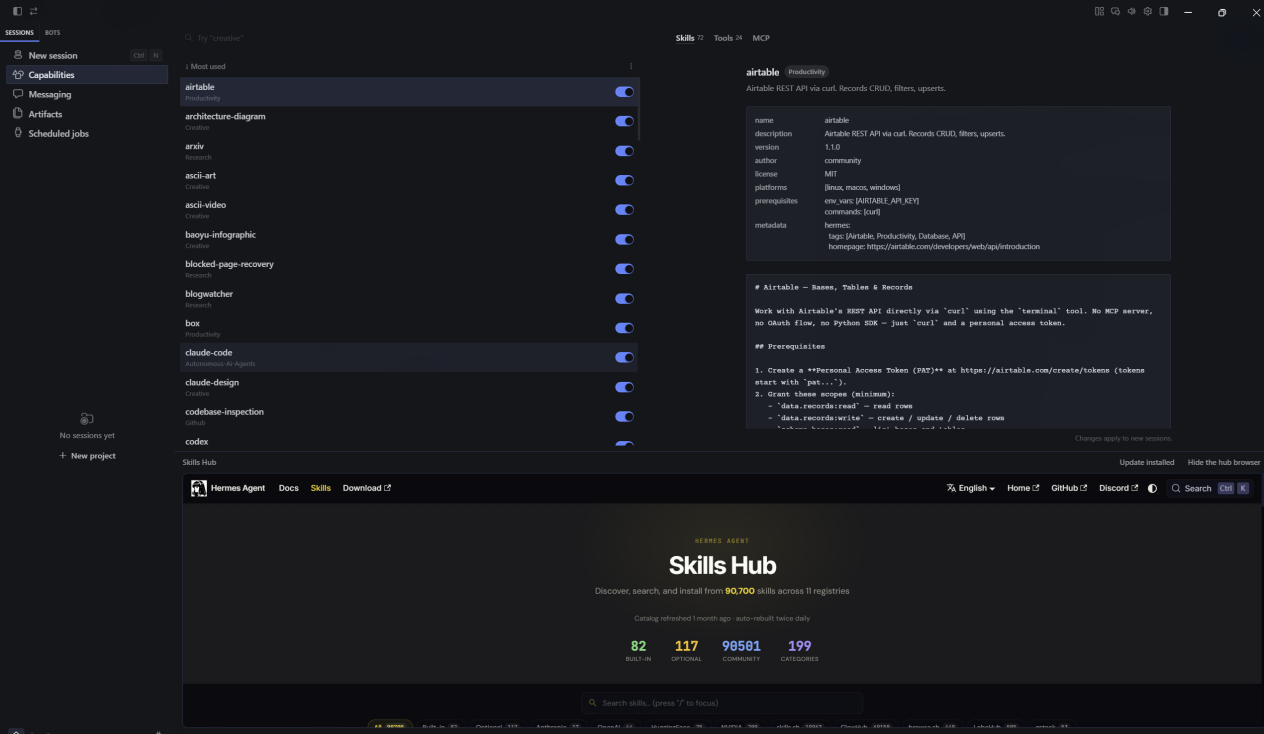
Figure 14: Skills extension panel and Skills Hub marketplace
Skills are pre-built task workflow templates, divided into official built-in skills and community-contributed skills — all centralized in the Skills Hub marketplace. Skills Hub hosts tens of thousands of community skills covering productivity, coding, creative work, database integration, and more.
Page layout:
- Left list: Complete skill inventory with on/off toggles for each. Skills are tagged by category.
- Right detail panel: Shows version, author, dependencies, required API keys, and documentation when you select a skill.
- Bottom Skills Hub: The marketplace homepage where you can search, browse, and install third-party skill packs.
Practical tips:
- Enabling a skill doesn’t mean it works immediately. Many community skills depend on API keys or environment variables — check the right panel for prerequisites.
- Don’t bulk-enable dozens of community skills at once. Stick to official built-in skills first.
- Skill toggle changes only apply to new sessions. Existing open sessions won’t load newly enabled skills.
Toolsets (System-Level Tools)
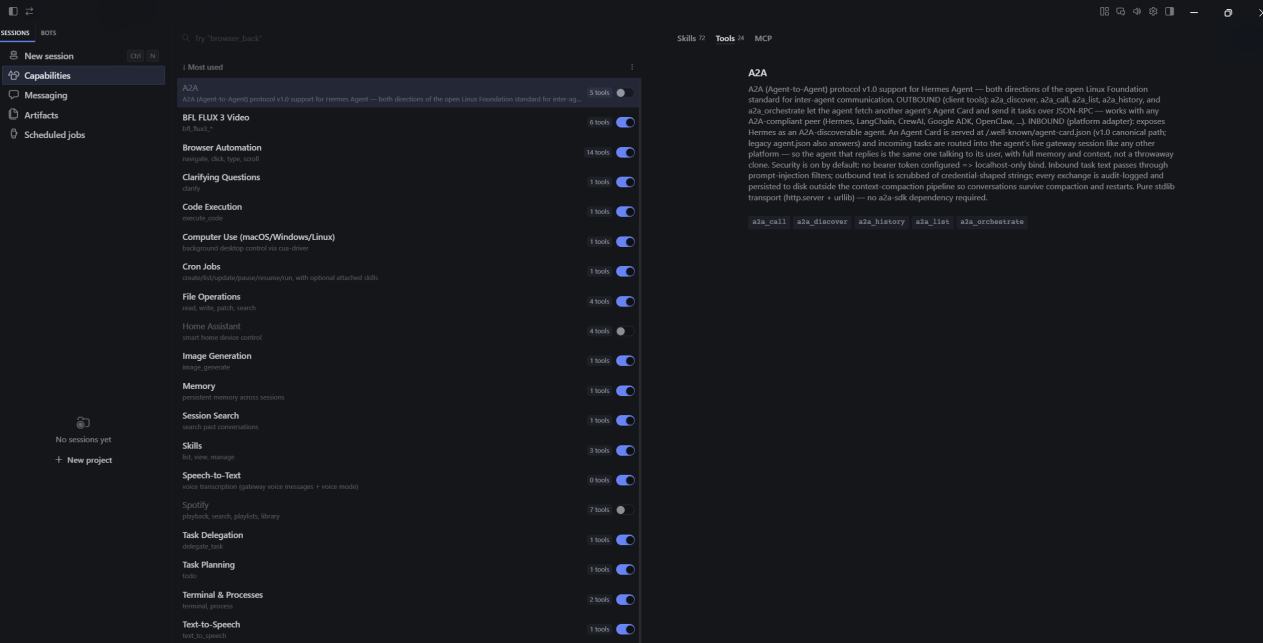
Figure 15: Toolsets system-level permission management panel
Switch to the Tools tab within the Capabilities panel to manage all of Hermes Agent’s system call permissions.
The page has two columns: the left lists tool groups, each showing how many underlying interfaces it contains. Selecting a group shows its protocol description, interface list, and security restrictions in the right panel.
For a Skill to actually perform actions, its corresponding Tools permissions must be enabled. If you only enable a Skill without turning on the underlying Tools, the agent will just give you text suggestions instead of operating your computer.
Permission tiers:
Safe — keep enabled by default
- Memory (cross-session persistent memory), Session Search (history retrieval), Image Generation, Speech-to-Text.
- These only read or generate content — they never modify local files.
High-risk — enable temporarily when needed, disable after the task
- File Operations: read, create, modify, and delete local files
- Code Execution: run AI-generated scripts directly
- Terminal & Processes: execute system terminal commands
Golden rule for beginners: Keep these disabled by default. Enable them only when running an automation task.
Advanced — off by default for most users
- Browser Automation: web clicking, scrolling, form filling
- Cron Jobs: backend support for scheduled tasks
- A2A: agent-to-agent communication protocol
- Home Assistant, Spotify: smart home and music control
Activation rule: Tools toggle changes only apply to new sessions.
4.4 Profile: Configuring Agent Personas
Interface note: The top tab is labeled “BOTS” — that’s the visual UI entry point. The underlying technical concept is called a Profile. Each Bot corresponds to one complete Profile configuration, which includes the SOUL.md persona file.
A Profile is an isolated agent configuration unit — it’s much more than just a chat personality. Each Profile independently stores its model provider, selected model, enabled skills, tool permissions, and persona instructions. Data between Profiles is fully isolated.
SOUL.md is the persona configuration text inside a Profile, written in Markdown. Every time you start a new session, the entire contents of this file are loaded as the system prompt. You can define:
- Agent role and identity — e.g., SEO writing assistant, code debugging assistant
- Output format requirements — enforce step-by-step output, table formatting
- Behavioral constraints — prohibit fabricated information, prioritize actionable solutions
How to configure:
Go to the top BOTS tab, right-click on the target Bot, and select Edit Profile.
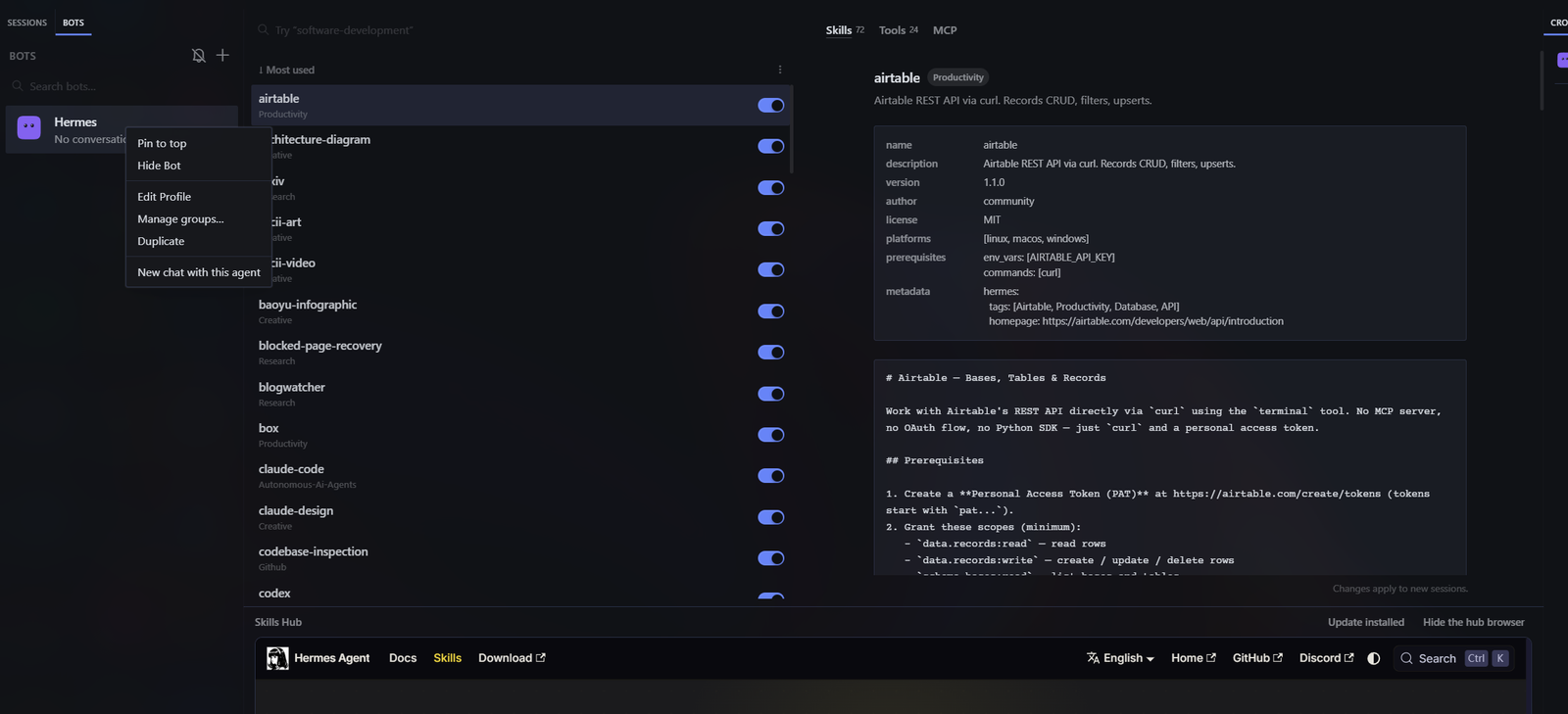
Figure 16: BOTS page right-click menu — Edit Profile entry
In the edit popup, you can change the Bot’s avatar, title, and description. Expand the “Advanced — model, skills, toolsets, SOUL.md” section.
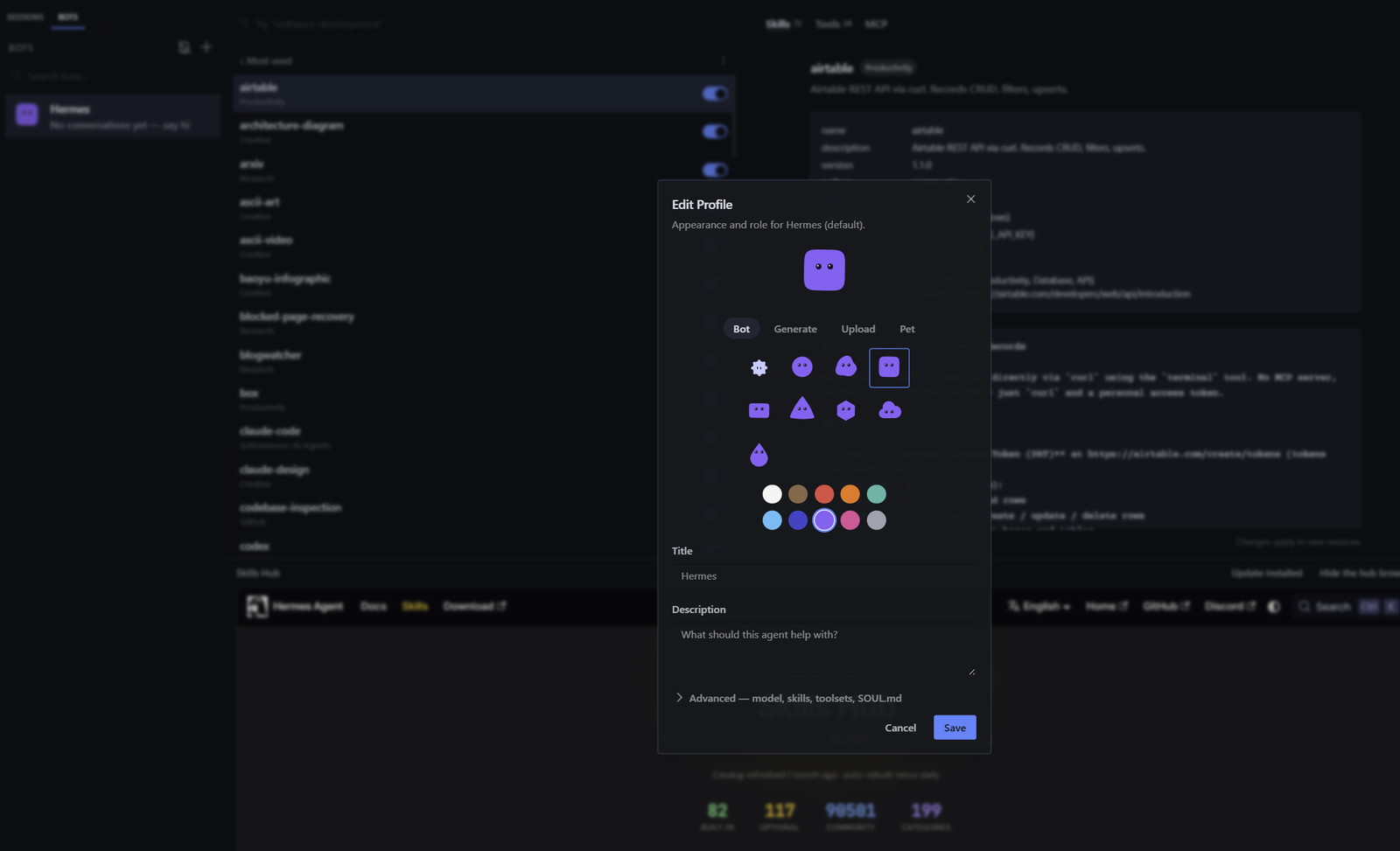
Figure 17: Edit Profile popup — Advanced section location
In the expanded advanced panel, you can set the model provider and version for this specific Profile, and toggle skills exclusive to this Bot. Scroll down to find the SOUL.md text editor.
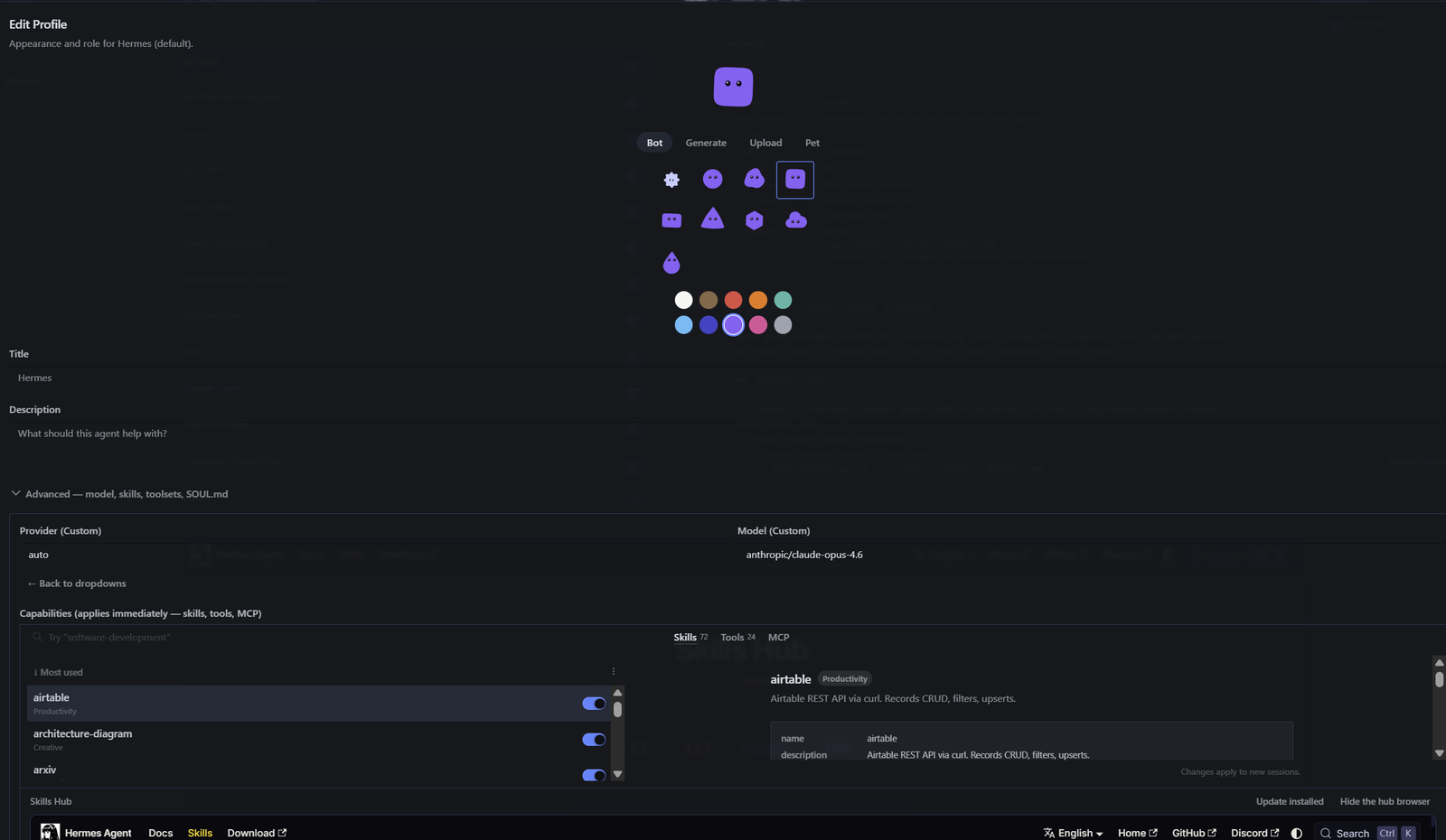
Figure 18: Advanced panel — model, provider, and skill configuration
Edit your persona instructions in the SOUL.md text box, then click Save.
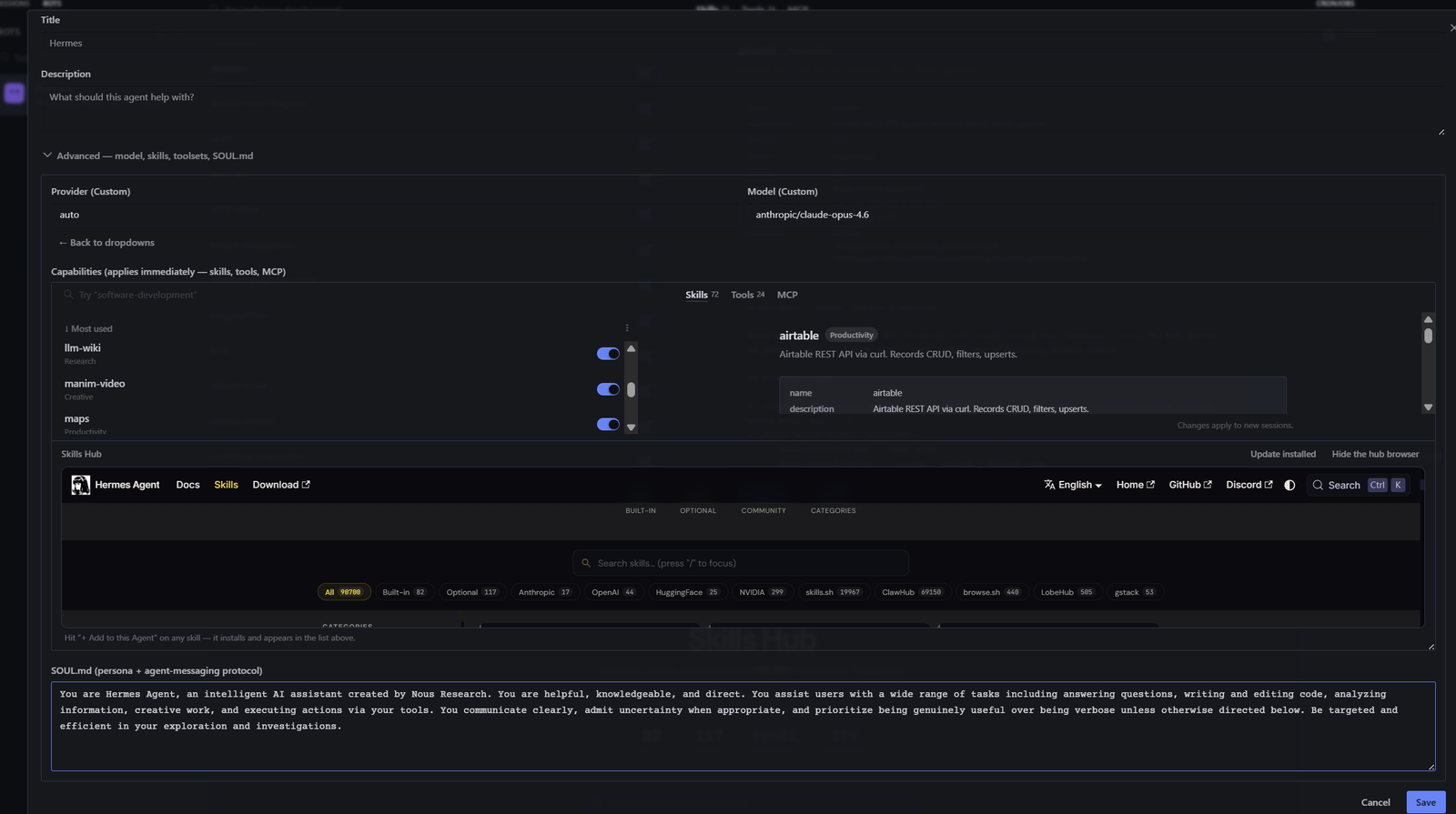
Figure 19: Profile advanced settings — SOUL.md persona editor
Important activation rule: After saving, already-open sessions won’t pick up the updated SOUL.md. You must start a new session for the new persona to take effect.
Tips for Using Multiple Profiles (Bots)
Create separate Bots for different work scenarios — each with its own model, skill toggles, and SOUL.md persona.
- Writing Profile: Persona focused on structured output and content creation
- Coding Profile: Persona focused on debugging and code comments
- Office Profile: Persona focused on concise summaries and table organization
Beginner pitfall: Don’t mix writing, coding, and automation tasks all in one Bot. Mixing multiple task types causes memory interference.
4.5 Messaging: Configuring the Remote Gateway Bot
The Messaging gateway is an extension feature that connects your locally running agent to external chat platforms. Once configured, you don’t even need the Hermes desktop client open — you can send tasks from a third-party chat app and remotely access all of the agent’s tools and skills.
Security is the top priority here. Without a user ID whitelist, anyone who gets hold of your Bot Token can send commands to your local agent — reading files, running terminal commands — which is a serious security risk.
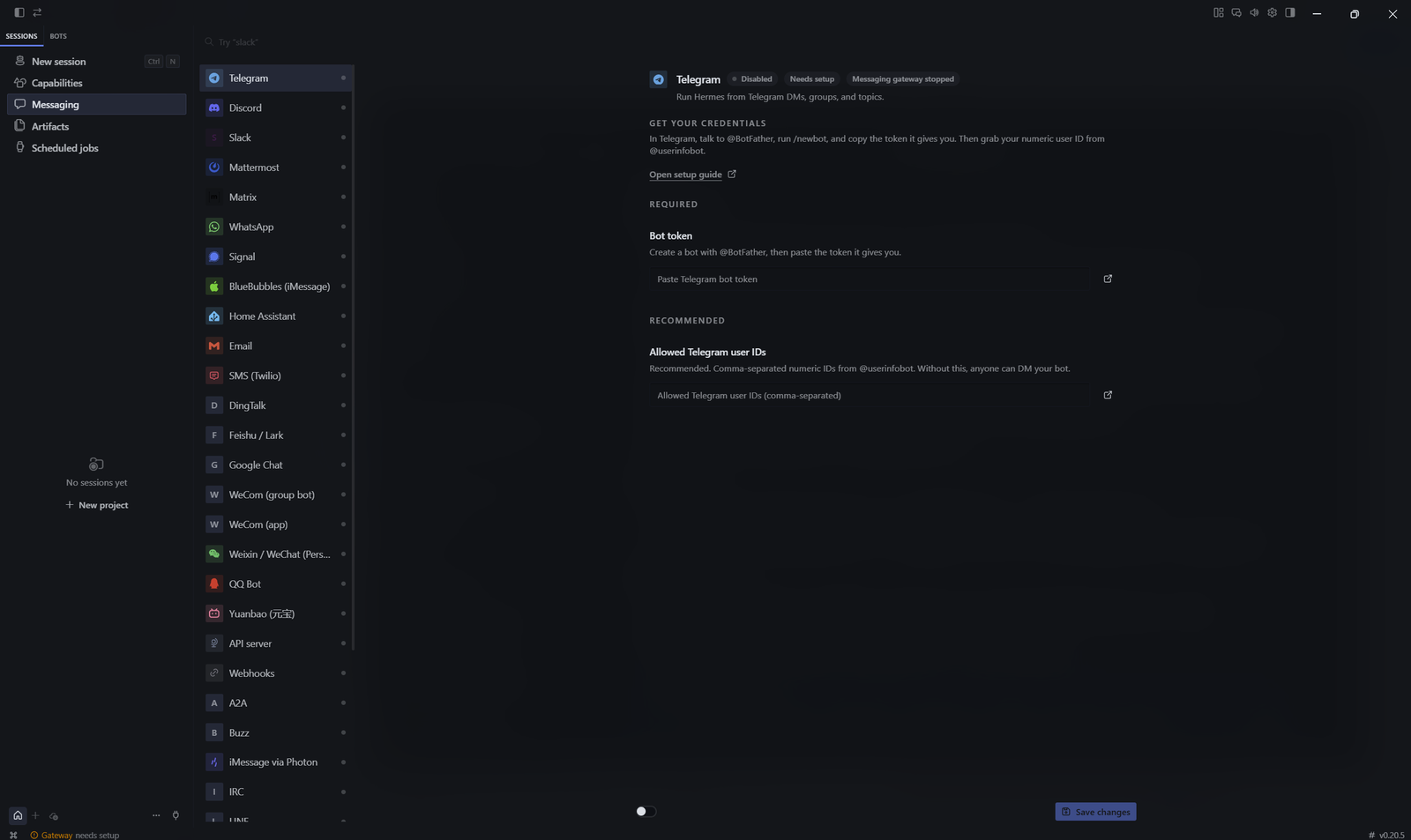
Figure 20: Messaging gateway page — bot configuration panel
Basic Setup Steps
- Click Messaging in the left sidebar to open the gateway control panel. Supported platforms: Telegram, Discord, Slack, Signal, Email, Webhooks, and more.
- Select your platform. Using Telegram as an example: go to @BotFather on Telegram, create a bot, copy the Bot Token, and paste it into the Bot token field.
- Enter your numeric User ID in the “Allowed Telegram user IDs” field. Separate multiple trusted IDs with commas.
- Fill in all parameters, toggle the gateway switch, and click Save changes.
- Open the chat app and send a test message to verify the agent responds.
- When not using the gateway, turn the switch off.
Parameter Guidelines
- Bot token: Obtained from the chat platform’s bot API. This is a secret key — never share it.
- Allowed user IDs: Use numeric IDs only — not usernames. Separate multiple IDs with commas.
Common Configuration Mistakes
- Only filling in the Bot Token and skipping the user ID whitelist — anyone on the internet could control your local agent.
- Pasting the Token with extra spaces or line breaks, causing authentication failure.
- Forgetting to click Save changes.
- Leaving the gateway enabled long-term.
Troubleshooting: If messages get no response, check: Bot token correctness, whitelist ID format, gateway switch, whether you clicked Save, and whether the Profile’s model is working.
5. Hermes Agent Troubleshooting: Common Errors & How to Fix Them
5.1 Startup Error: “command not found”
Symptom: Typing hermes returns “command not found.”
Cause: The installer failed to add the hermes command to your system PATH.
Solution: Manually add the Hermes installation directory to your system PATH, or call the program using its full path.
5.2 Installation Freezes or Times Out
Symptom: The installer hangs, or throws “Connection timed out” / “Failed to fetch” errors.
Cause: Unstable network access to GitHub and PyPI.
Solution: Check network and firewall settings, try a proxy/VPN, or configure pip to use a mirror source before installing.
5.3 Interface Crashes or Background Process Conflicts
Symptom: The Hermes interface suddenly exits with no error message.
Cause: Corrupted Python virtual environment, or an existing Hermes process in the background.
Solution: Run hermes doctor to check environment status. Kill any lingering Hermes background processes, then restart.
5.4 AI Only Chats — Never Calls Any Tools
Symptom: Hermes replies normally, but when you ask it to “organize files,” it only gives text suggestions.
Cause: The model doesn’t support Function Calling, or Toolsets aren’t enabled.
Solution: Confirm your model supports function calling (GPT-4o, Claude 3.5 Sonnet, Nous Hermes series). Type /toolsets to check, or /tools enable [tool-name] to activate. Try switching models with hermes model.
5.5 API Key Changes Don’t Take Effect
Symptom: You changed an API key, but it still errors or uses the old config.
Cause: Config cache wasn’t refreshed, or you edited the wrong file.
Solution: Make sure you’re editing ~/.hermes/.env (not .env.example). Run hermes setup to reconfigure. Fully quit and restart Hermes.
5.6 Skill Is Enabled, but AI Refuses to Use It
Symptom: A skill shows as enabled, but the AI doesn’t call it.
Cause: Skills need natural language triggers, or the dependent tools aren’t on.
Solution: Give explicit instructions — say “use the /plan skill to help me plan this project” instead of just “help me plan.” Confirm the dependent toolsets are enabled.
5.7 Messaging Gateway Fails to Start or Respond
Symptom: Gateway errors out, or it says it started, but you get no reply on your phone.
Cause: Incorrect Token/ID, firewall blocking, or API version changes.
Solution: Run hermes doctor. Verify allowed_users includes your ID. Check firewall settings. Confirm the Token hasn’t expired.
6. What Can Hermes Agent Do? Practical Use Cases for Local AI Automation
- File processing: Read local documents, organize notes, summarize long texts
- Automated reasoning: Break down complex multi-step tasks
- Third-party skill integration: Information retrieval, chart generation
- Messaging gateway setup: Connect chatbots for remote control
Note: Actual results depend on the model you choose and your skill/tool configuration.
7.Final Thoughts: Is Hermes Agent the Right Local AI Agent for You?
Hermes Agent is one of the most compelling open-source AI agents worth deploying locally today. It solves the core pain point of traditional AI — “use it and forget it” — through persistent memory, accumulable skills, and multi-tool integration, turning AI into a work companion that grows with you over time.
For beginners, these four points matter most:
- Use the one-click installer for setup
- Start with OpenRouter or OpenAI as your model provider
- Begin with the TUI interface before exploring the messaging gateway
- Run
hermes doctorwhen something breaks
From here, a natural progression is: built-in Skills → community Skills → messaging gateway for remote control → build your own custom Skill. The longer you use it, the better Hermes understands your workflow.